WEB: July/2025 

The new update of the Dynamox Platform is now available! 🌐 

We bring new features related to Spot/Checklist Selection in Reports and Changes in Viewing Preferences! ✨

🆕 Reevaluate Checklists 

Aiming to improve the usability of the Dynamox Platform, users can now quickly update the status of anomalies identified during sensory inspections. ✅ 

All of this is possible through the new checklist reevaluation feature, enhancing efficient planning for the entire team! 

🔍 How can I use the new feature? 

The user must log in to the Dynamox Platform and access the “Checklist Reports” page through the side menu. From there, the user should select the checklist(s) they wish to reassess. 

To perform the reassessment, the following criteria must be met: 

  • Only checklists with at least one alert can be reassessed; 
  • A maximum of ten checklists can be reassessed at once; 
  • The user must have permission as a Mechanical Inspector, Electrical Inspector, or Lubricator to perform this action. 

After selecting the checklist(s), the user must click on “Reevaluate” and choose between the two available options: 

  • Reevaluate via the platform, where the user answers the checklists again through the Web Platform; 
  • Create a corrective route, where the user generates a new route to be executed using the App. 

Reevaluate via the Platform 🖥️ 

Using this option, the user can update the criticality level of the necessary questions and attach evidence justifying the reevaluation of the item — for example, an image showing a component obstruction. 

Create Corrective Route 🔧 

When selecting this option, the user must define the execution interval of the route, while the content (checklists and assets) will be filled in automatically. The route will be automatically assigned to the user performing the reevaluation. 

Additionally, the new update now also includes a Status Timeline, which shows the number of alerts issued by the same checklist during the selected period. 

🆕 Spot/Checklist Selection in Reports 

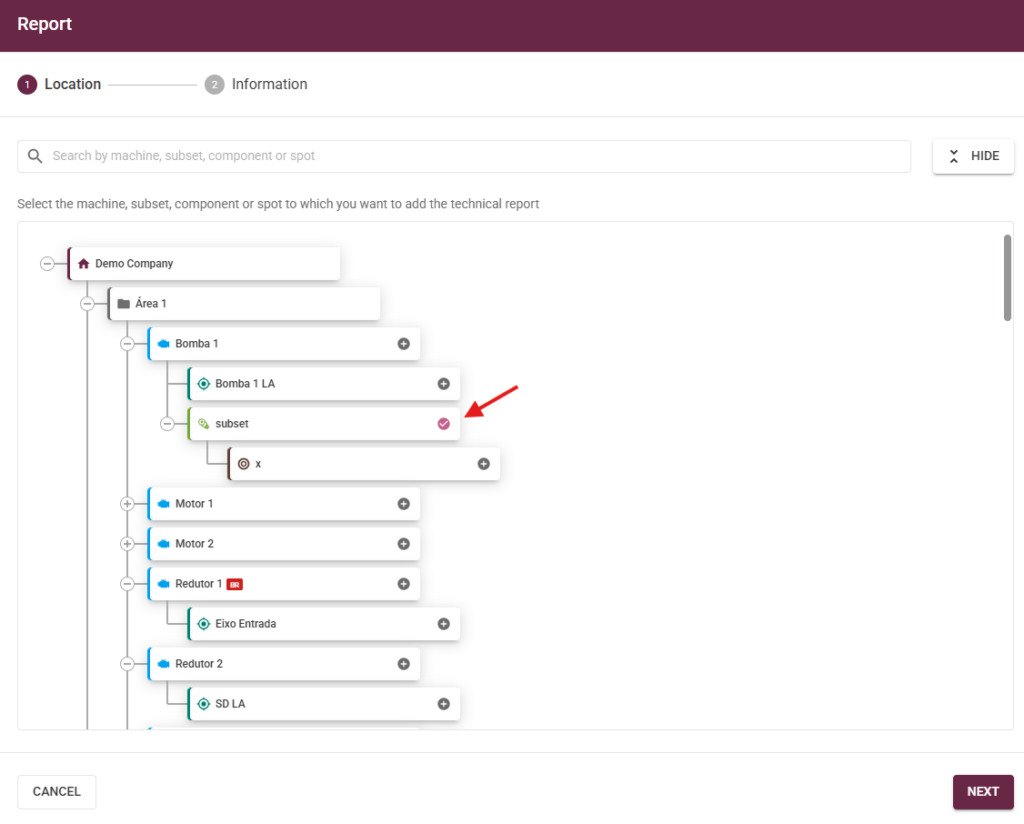
Historically, when creating predictive analysis reports by machines, subsets, or components, users were not able to select the analyzed spot for diagnosis. 

Now, the new update allows the selection of one or more spots in reports by equipment! 📝 

Depending on the report’s origin, the spot may come pre-selected or a list of spots may be available for selection. It’s important to note that the location step remains unchanged! 

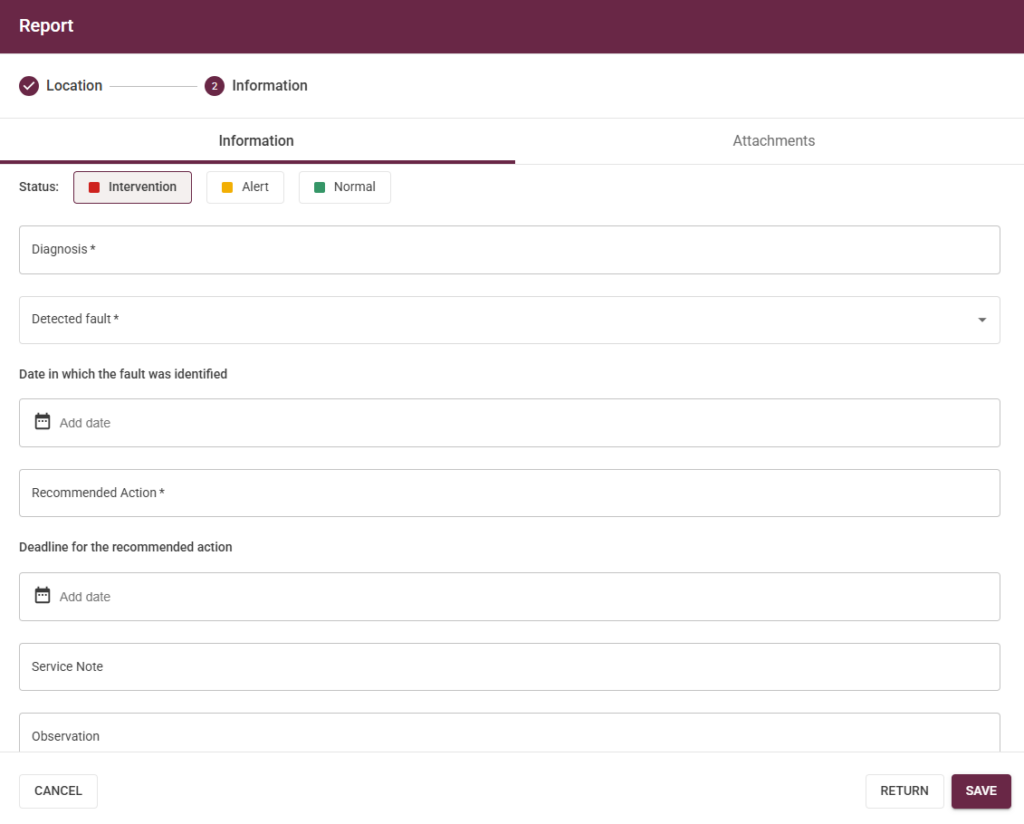
In the information step, a “Spots” field has been added, where you can select the spot(s) whose analysis contributed to reaching that diagnosis. The report’s location is also available in the upper corner. 

If the machine level was selected in the location tab, all associated spots below will be displayed in the list of available spots for selection — including those linked to subsets/components at lower levels. 

Additionally, in sensitivity analysis reports, it will be possible to associate checklist responses. 

🆕 Change in Viewing Preferences 

Still in this update, we bring an improvement to the viewing preferences of the Spot Viewer. 

Now, users can permanently add and customize the charts they want to view, further optimizing their experience! 

🔍 How can I use the new feature? 

The “add chart” button now adds the chart to the view in a persistent way. In other words, once selected, the chart remains in the Spot Viewer across all future user sessions. 

Additionally, to permanently remove charts, a button has been added to the user’s chart view. After deletion, an option to undo the action will be displayed. 

Start using the new updates now – already available on the Dynamox Platform! 🚀 

If you have any questions, please contact Dynamox Technical Support: suporte@dynamox.net 
iOS – version 4.3

The new update is now available on iOS!  🌐 

Check out our new features and tools, made especially for you. ✨ 

🆕Dashboard and Menu Redesign 

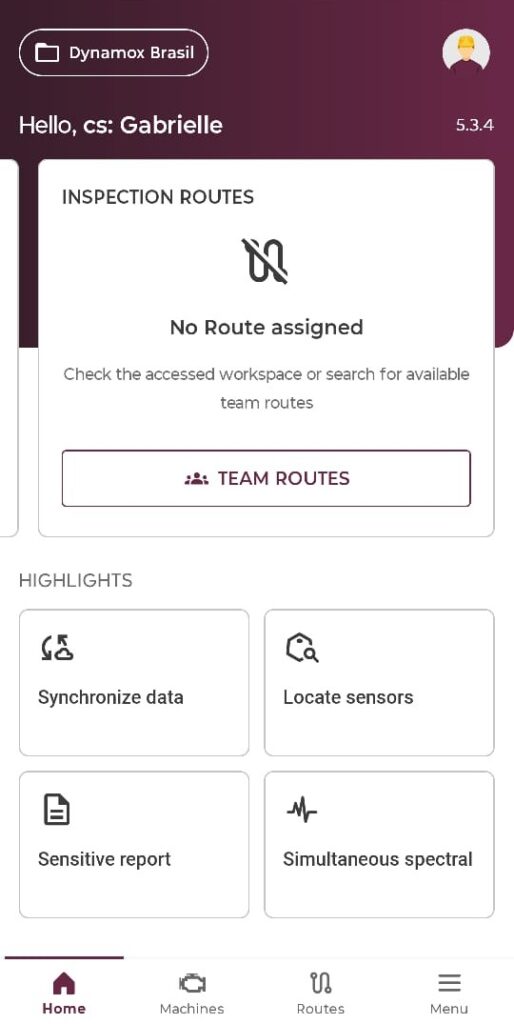
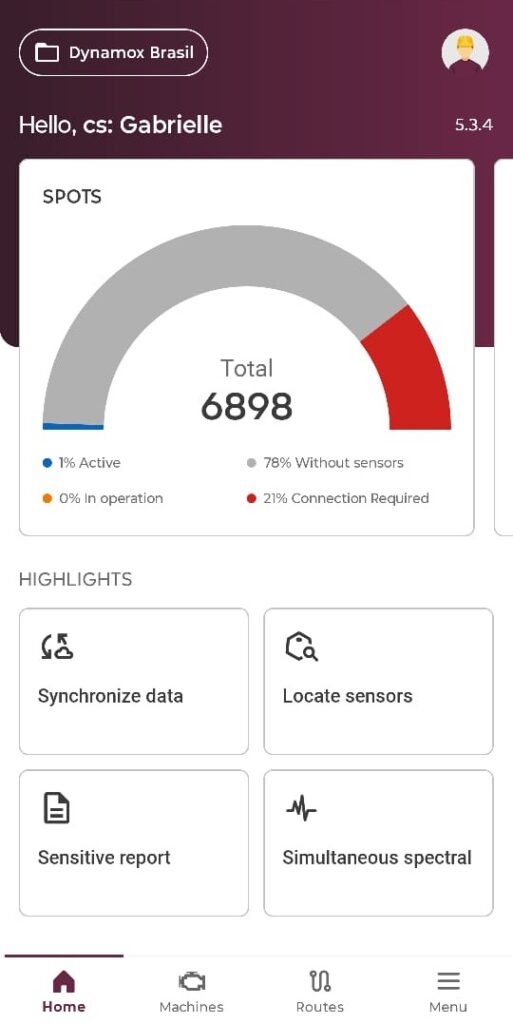
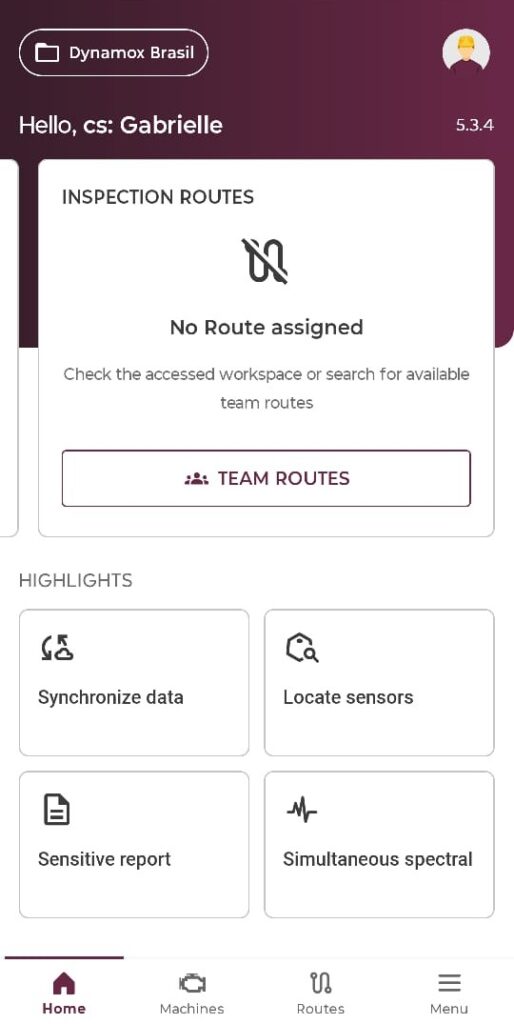
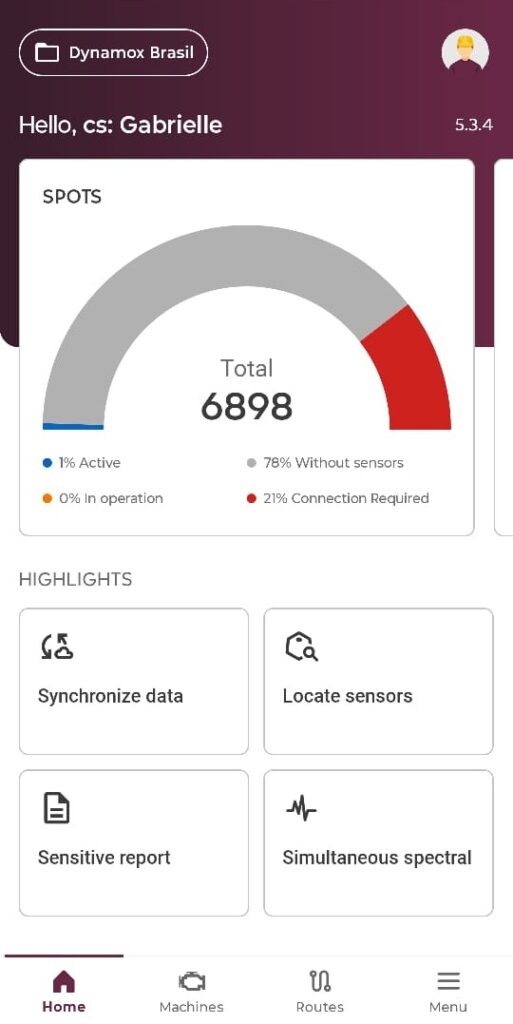
The new app update brings a complete redesign of the dashboard screen! 

The screen has been fully revamped, with functional visuals aligned with user needs: 

Additionally, if the user does not have the DynaSens module, the new dashboard will display an informative screen that redirects to the website: 

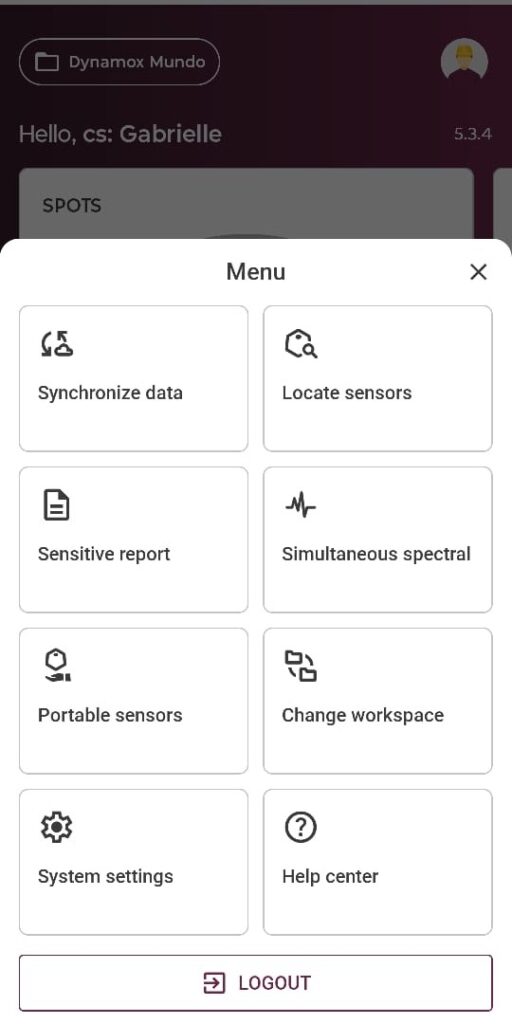
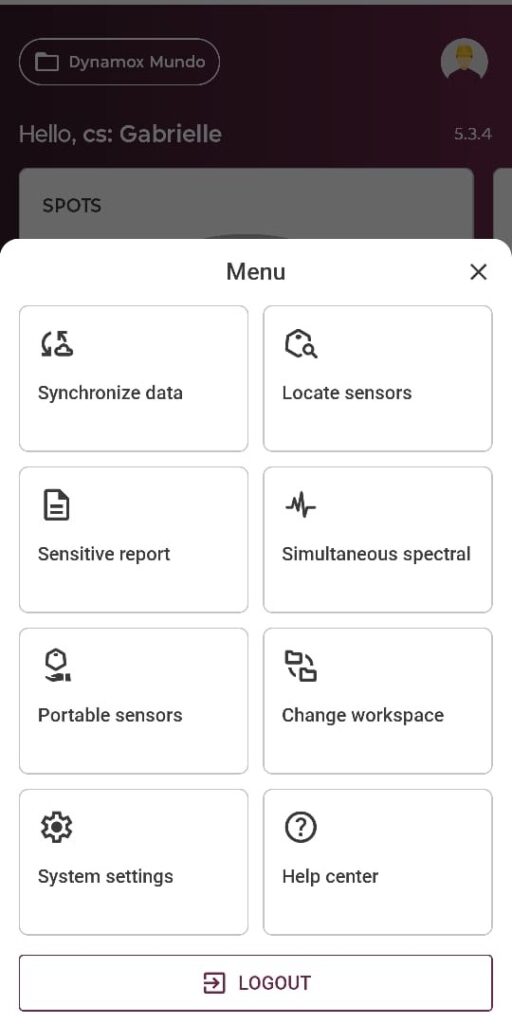
New Menu and Access   📲 

With the new update, the old menu has been removed and placed at the bottom of the app, providing quick and easy access to the main screens and features. It also improves visibility and available actions for users: 

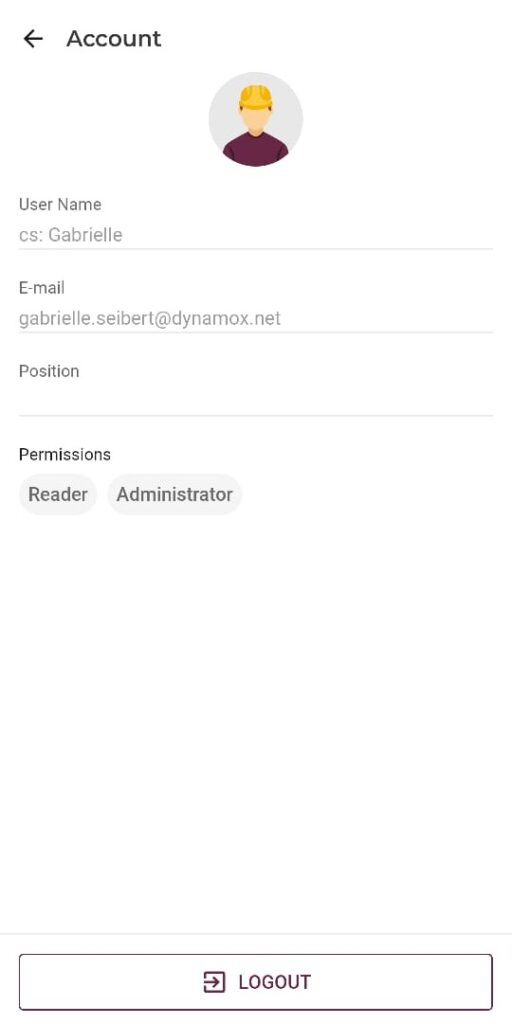
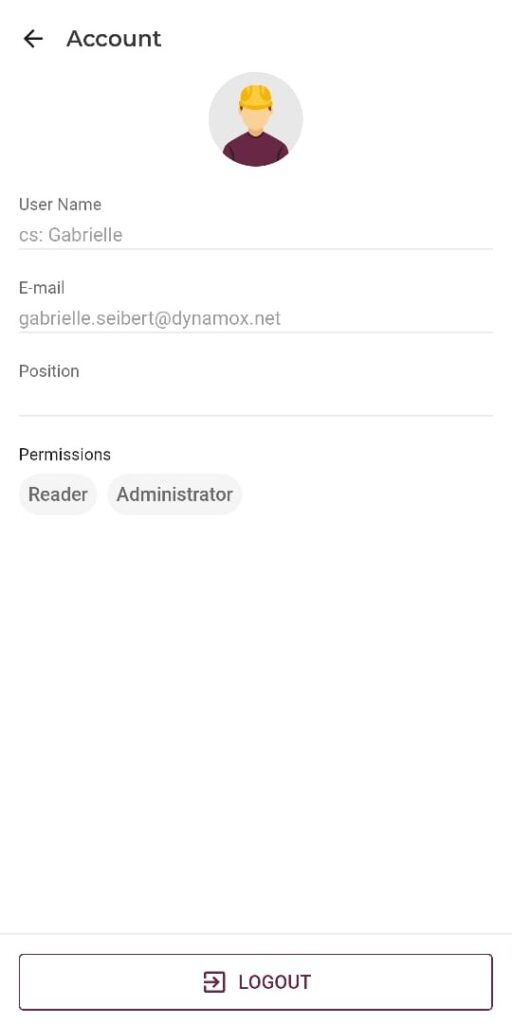
We also have a new account access screen! Now users can add information such as name, position, and email: 

The buttons for creating a machine and accessing team routes have also been updated. 

On the user’s first access after the update, we’ll show the new features and changes in a simple way. 

🆕Checklist Response Report 

To bring even more possibilities to our app, it’s now possible for the executor to generate a report directly from the app after identifying an alert during an inspection routine! 

💡 How to use the new tool? 

The executor should go to the Sensitiva area in the app, select the route they want to execute, and access a checklist. 

After completing the checklist, the user will receive a “Checklist Completed” notice and the option to Create Report. If the user selects this option, they will be directed to the Report screen. 

The Report will come with the fields Asset, Checklist, Status, and Attachments pre-filled. After completing the remaining information and saving, the user will return to the step of the route they were on. 

🔔 Important: Only the Asset and Checklist fields will not be editable. 
If the user uses the “Checklists Only” function, the Create Report option will appear between one checklist and another. 

The executor also has the option to create reports after completing the route(s), by accessing them in view mode. 

Start using the update now: already available on the iOS app! 🚀 

Android – version 5.3

The new update is now available on Android!  🌐 

Check out our new features and tools, made especially for you. ✨ 

🆕Dashboard and Menu Redesign 

The new app update brings a complete redesign of the dashboard screen! 

The screen has been fully revamped, with functional visuals aligned with user needs: 

Additionally, if the user does not have the DynaSens module, the new dashboard will display an informative screen that redirects to the website: 

New Menu and Access   📲 

With the new update, the old menu has been removed and placed at the bottom of the app, providing quick and easy access to the main screens and features. It also improves visibility and available actions for users: 

We also have a new account access screen! Now users can add information such as name, position, and email: 

The buttons for creating a machine and accessing team routes have also been updated. 

On the user’s first access after the update, we’ll show the new features and changes in a simple way. 

🆕Checklist Response Report 

To bring even more possibilities to our app, it’s now possible for the executor to generate a report directly from the app after identifying an alert during an inspection routine! 

💡 How to use the new tool? 

The executor should go to the Sensitiva area in the app, select the route they want to execute, and access a checklist. 

After completing the checklist, the user will receive a “Checklist Completed” notice and the option to Create Report. If the user selects this option, they will be directed to the Report screen. 

The Report will come with the fields Asset, Checklist, Status, and Attachments pre-filled. After completing the remaining information and saving, the user will return to the step of the route they were on. 

🔔 Important: Only the Asset and Checklist fields will not be editable. 

If the user uses the “Checklists Only” function, the Create Report option will appear between one checklist and another. 

The executor also has the option to create reports after completing the route(s), by accessing them in view mode. 

Start using the update now: already available on the Android app! 🚀 

WEB: June/2025 

The new update of the DynaPredict Web Platform is now available! 🌐 

The platform brings new features related to the Gateway Report, Public Alerts API, and Spectral Requirement Threshold Settings. ✨

🆕 Offline Gateways Report 

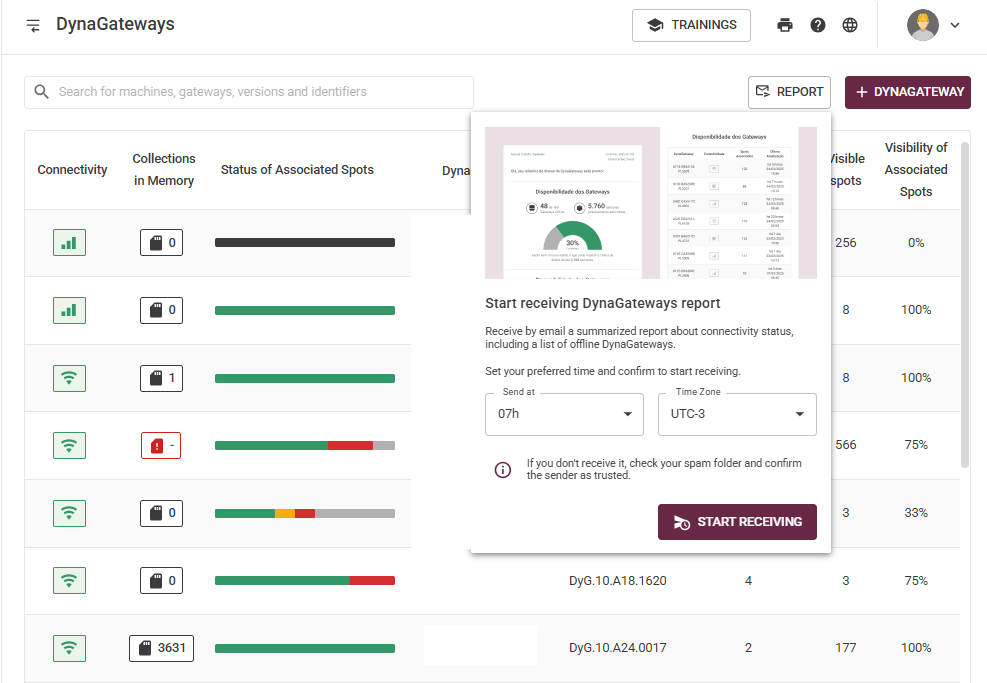
The new platform update introduces a new feature: Offline Gateways Report! 

Now, platform users can receive email notifications for DynaGateways that have been disconnected in the last 24 hours. 🕒📄 

Users can access this tool on the “DynaGateways” page via the “Report” button:

After subscribing the desired Gateways in the new configuration, the user will receive daily emails (one email per day) with reports on the status of these devices. 

This new update is designed to support quick decision-making in case of offline collectors, ensuring that users do not lose important data. 

Additionally, there is always the option to unsubscribe from the email notifications if the user no longer wishes to receive them. 

🆕 Public Alerts API 

Bringing even more convenience to your daily routine, the new update expands the range of data available through Dynamox’s Public API! 

With the new endpoint, it is now possible to access alert data and integrate it with other platforms. 🖥️ 

Remember that through the APIs, it is also possible to access processed information from the platform, user-created reports, specialized metrics, AI-based diagnostics (DynaDetect), and inspection route reports from DynaSens. 

Another update focused on optimizing activities and increasing operational agility, enabling access to relevant data—such as alerts—across different environments! 🚀 

🆕 Bulk Configuration of Spectral Requirement 

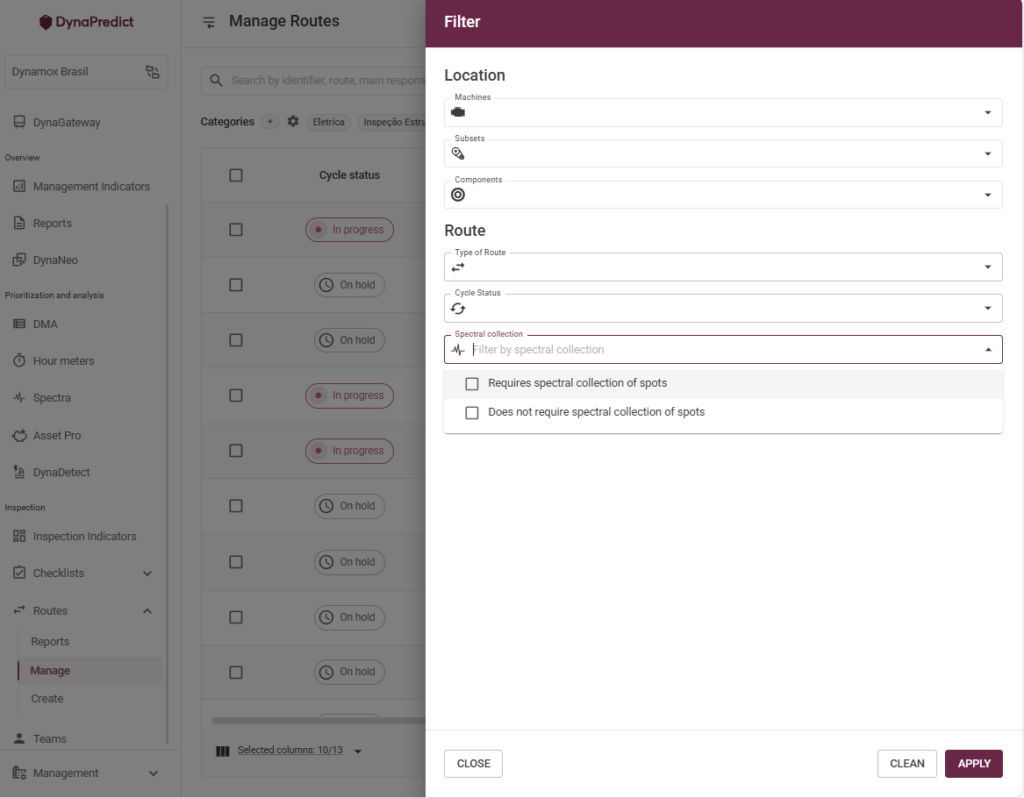
With the new update, we also bring improvements to spectral requirement configuration! Now, users can edit the spectral requirement settings for a large number of routes all at once. 

How can I use the new feature? 

🔍 Filter 

The user must access the “Manage Routes” page within the Web Platform. On this page, users can now filter routes according to the configured spectral requirement using the “Filter” button: 

 Bulk Route Configuration 

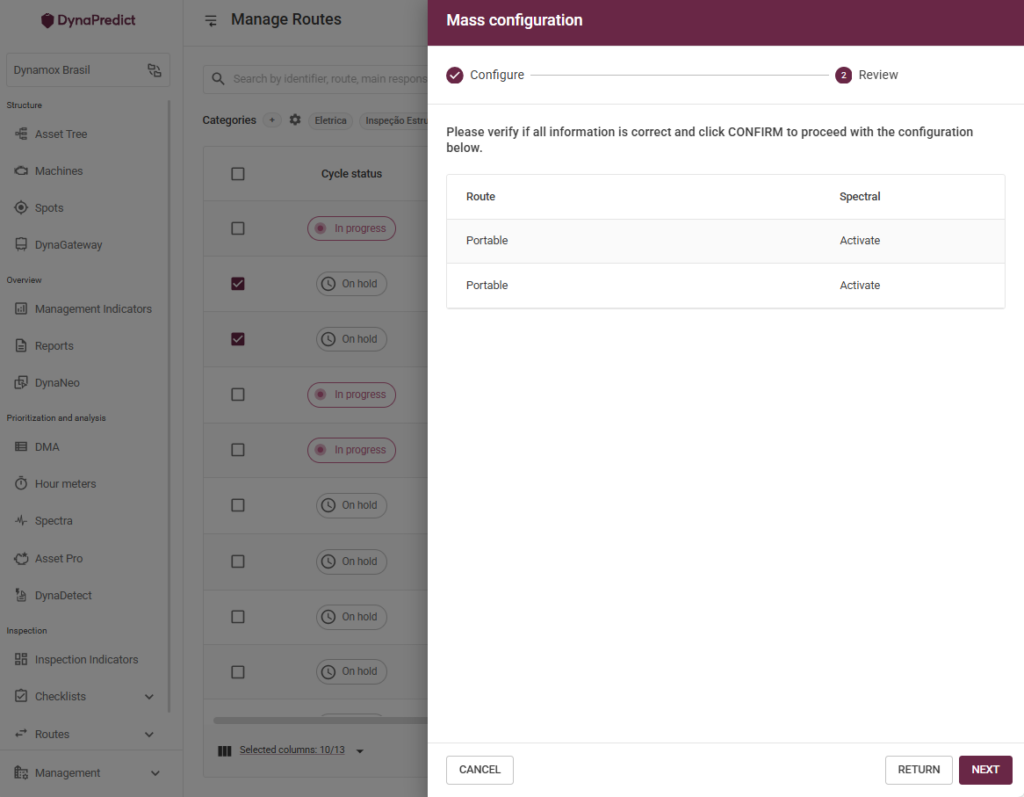
To make the process of editing existing routes more user-friendly, users now have the ability to bulk edit spectral requirements directly from the “Manage Routes” page. 

To get started, the user must select the desired routes. Once at least one route is selected, the “+ Route” button will change to a new bulk configuration button. 

The user should then click the button and select the configuration they wish to apply to the routes. After that, it’s possible to review the selected changes before confirming and executing them: 

📌 Note: The maximum number of routes that can be edited at once is fifty. 

Start using the new updates now — they’re already available on the Web Platform!🚀 

WEB: May/2025

The new update of the DynaPredict Web Platform is now available! 🚀✨ 

The new update brings news for System Preferences and User Group Adherence. 

🆕 System Preferences 

Currently, the web platform has several configuration options that allow the user to customize the applications as desired. ⚙️🌐 

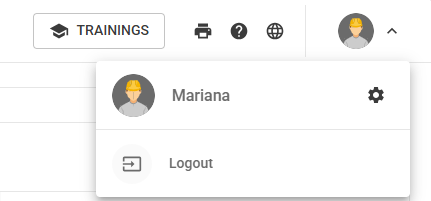
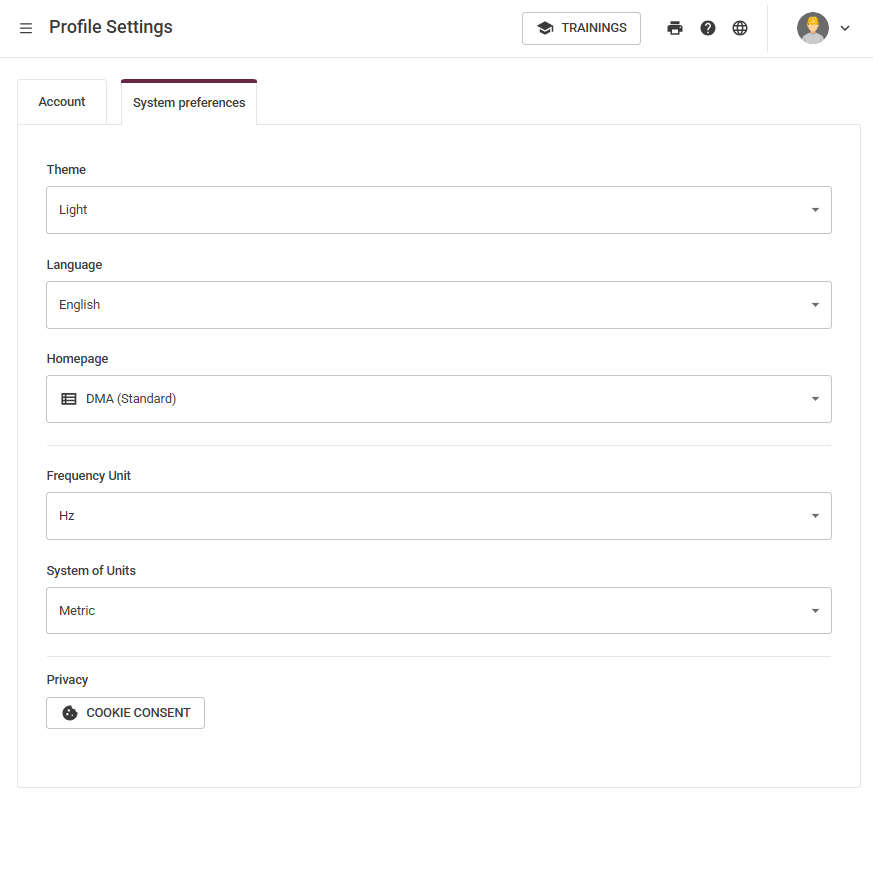
To access the settings, just click on the profile icon in the upper right corner of the page: 

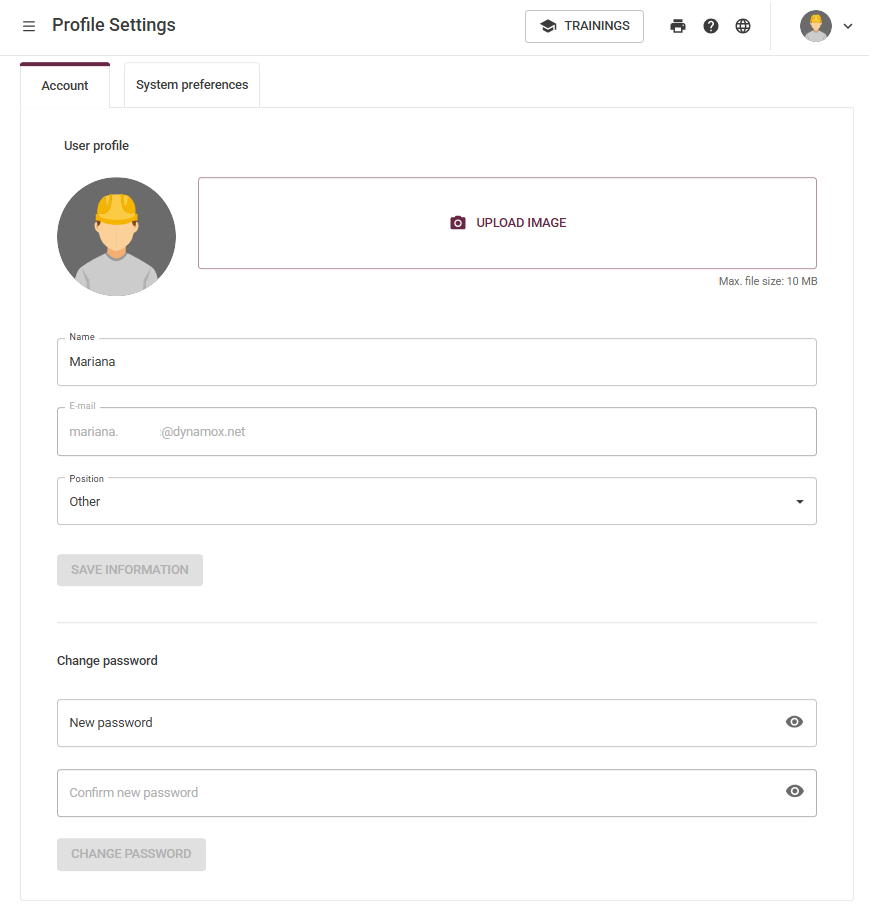
👤 With the new update, in the “Account” settings, in addition to the registration data (name, password, and profile picture) you can also fill in your job title.  

Additionally, in the “System Preferences” tab, the user can select settings such as unit system (metric or imperial), frequency unit (Hz or CPM), default theme (light, dark or according to your system) and language (Portuguese, English or Spanish). Furthermore, you can now also select your home page when accessing the platform! 

🆕 User Group Adherence 

The new update allows the user to save filters by permissions, subareas or users! Additionally, it is now also possible to monitor the adherence indicators and justifications of the selected user group. 

👥 To view the group indicators, simply click the “Team” button available in the Side Menu. After accessing this link, the user will be directed to the “Team Indicators” page. On this page, it’s possible to view indicators such as: Total Users, Total Routes, the Team Adherence chart, the distribution of justification types in the “Justified Items” chart, and also the Individual Reports. 

💾 To save filters, still on the Team Adherence page, the user can apply several filters. By clicking the filter button, a side panel will appear on the screen, where it’s possible to filter by users, permissions, subareas, and teams. 

Use the update now: already available in the Android App! 🚀

WEB: March/2025 

The new update of the DynaPredict Web Platform is now available, full of exciting new features made especially for you! 🌐✨ 

The latest updatebrings enhancements to Asset Tree Download, Report Creation, Geolocation Map, Bulk Visualization Editing, A2 Alert Emails, and Spectral Collection.

🆕 Asset Tree Download 

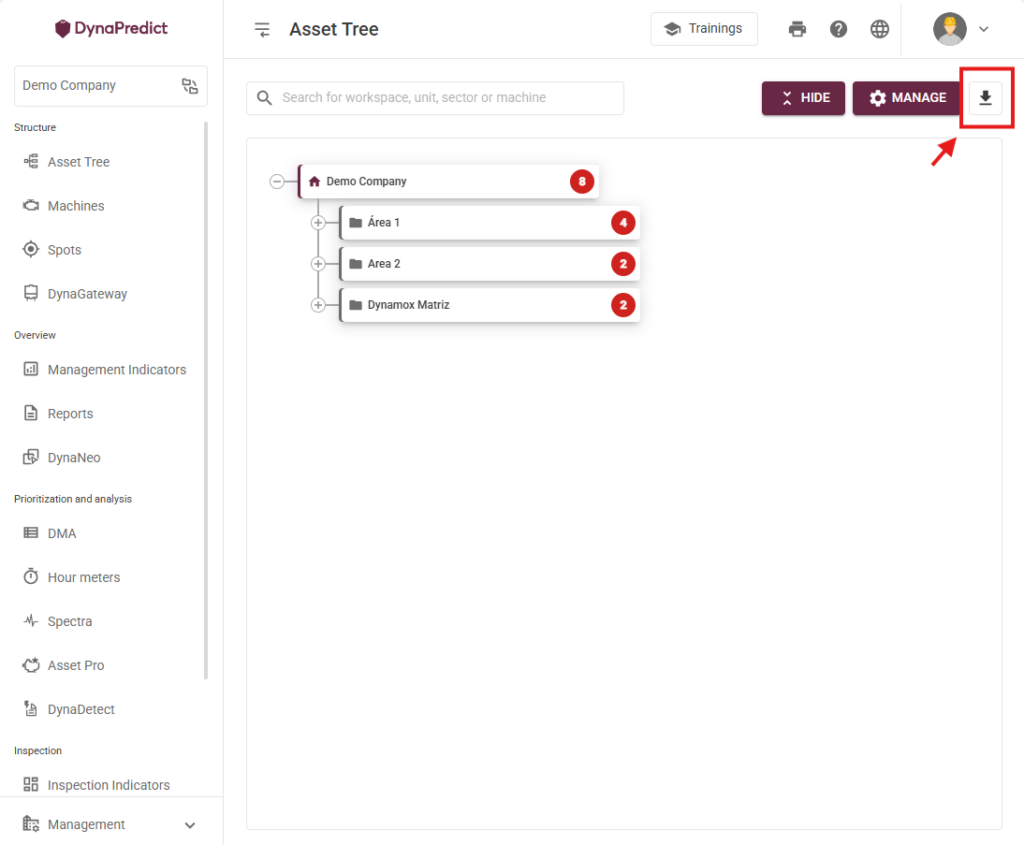
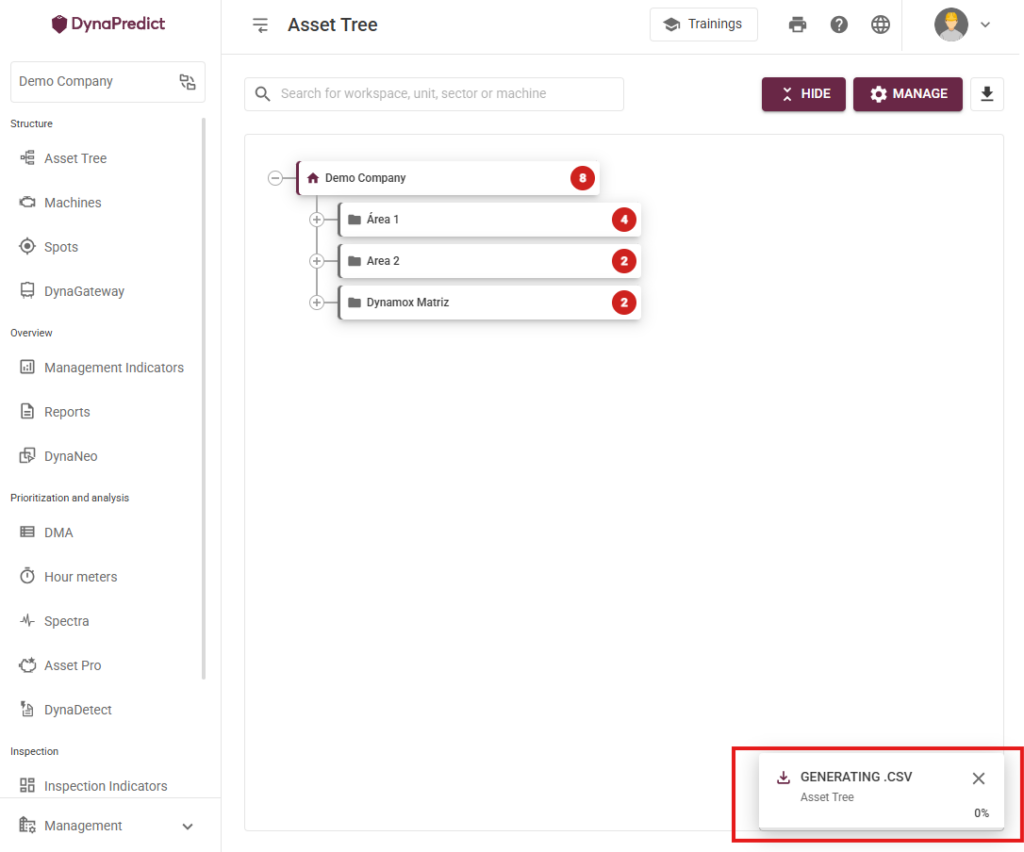
With the new update, users can now export the asset tree as a .CSV file directly from the platform! 📥 

This tool allows the export of all information present in the asset tree, from the root folder to the spot level. The feature can be found in the upper right corner of the screen, as shown in the image below: 

The .CSV file contains information from the root folder, subareas, machines, subsets, components, all the way to the spot. If the user is accessing a subarea, the download will export information starting from that subarea onward. 

🆕 New Features in Report Creation 

Historically, report creation was tied to specifying a report for an associated spot. With the new update, reports can now be created at different levels of the asset tree —such as machine, subset, component, or spot — allowing users to choose the most appropriate level for linking the report. 📝 

Where can I access the new feature? 

The report creation button, “+REPORT,” will be available on the following screens: 

  • Asset Pro 
  • Cascade 
  • Report Dashboard 
  • DynaDetect 
  • Machine Viewer 
  • Checklist Report 
  • Spot Viewer 
  • Spectral Viewer 

💡 Ability to Paste/Drag and Drop Images 

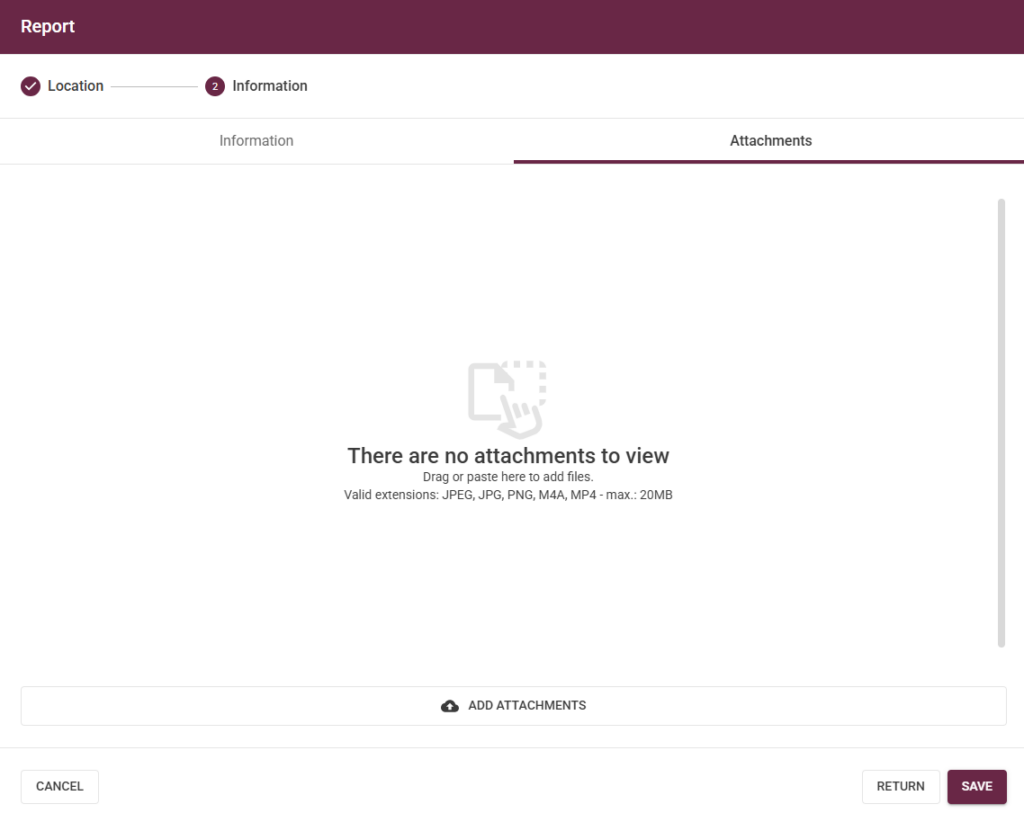
In addition to the detailed information provided, it is now possible to add attachments that complement the content of the report through the attachments sub-tab. 🖼️ 

It’s worth noting that users can drag and drop image files into the upload area of the attachments tab and/or paste images from the clipboard using CTRL+V. 

🆕Map with Geolocation 

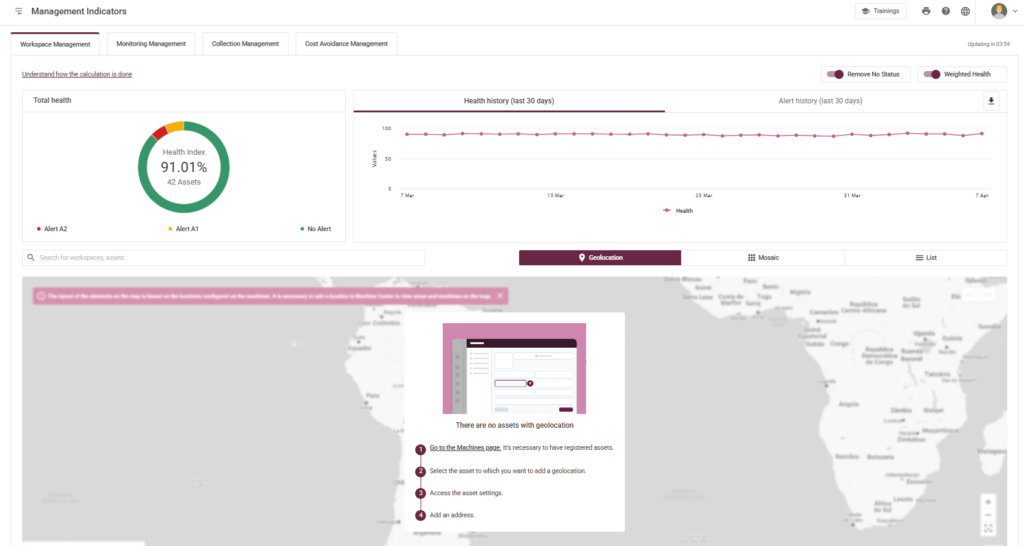
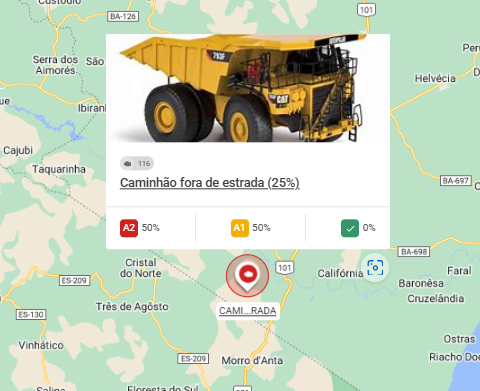
Expanding on the existing area health visualization formats, the update introduces the new “Geolocation Map”. 📍 

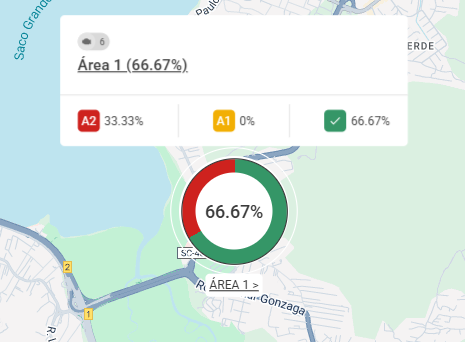
This feature takes into account the location assigned to the machines within a given Workspace, calculating an average location based on all machines that belong to it. 

The map displays area-specific information such as overall health percentage, allowing users to view the percentage of A1 and A2 alerts, as well as the total number of machines. 

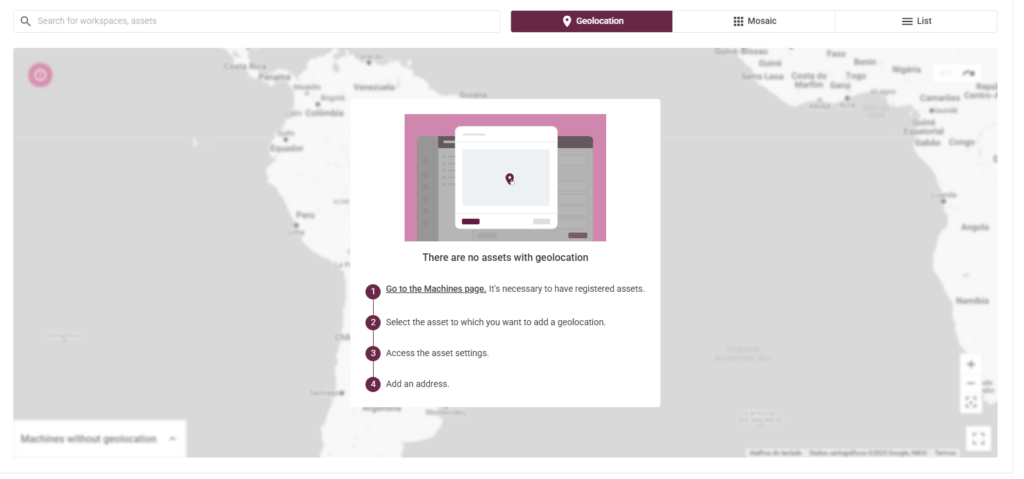
If an area does not have any machines with registered geolocation, the user will receive guidance on how to proceed with the registration, along with a link directing them to the machine list. 

🆕Bulk Editing of Visualization Settings: Spot Viewer and Envelope 

To make the spot editing process more efficient for users, the new update enables bulk editing of visualization settings for Spot Viewer and Envelope in the Web Platform! This tool is available for users with “Administrator” and “Editor” access levels. ✅ 

Which parameters can I configure? 

At this stage, the parameters that can be configured in bulk are: 

  • RPM 
  • Default Spectral 
  • Bearings 
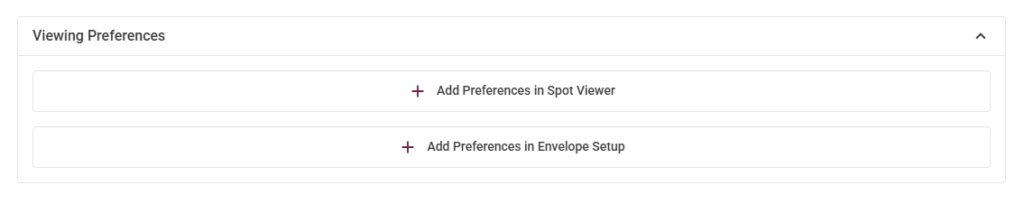
  • Visualization Preferences 
  • Spot Viewer 
  • Envelope 

How to use the bulk configuration? 

You can edit the visualization preferences for Spot Viewer and Envelope by adding the desired settings through the buttons shown in the image below: 

🆕Change in A2 Alert Email Notification Rules 

The update introduces changes for users in the “Subscribers” category, who will now receive alert emails under the following conditions: 

Immediate Notification: The user will always receive an email immediately after a metric changes to A2 for the first time (from A0 to A2 or A1 to A2). 🔔 

Resend After 24 Hours: If the metric remains at A2, a new email will be sent 24 hours after the initial notification. ⏰ 

🆕Spectral Collection Requirement Editing in Routes 

With the new update, the platform now allows the spectral requirement to be configured individually per route! 

How to enable individual route configuration 

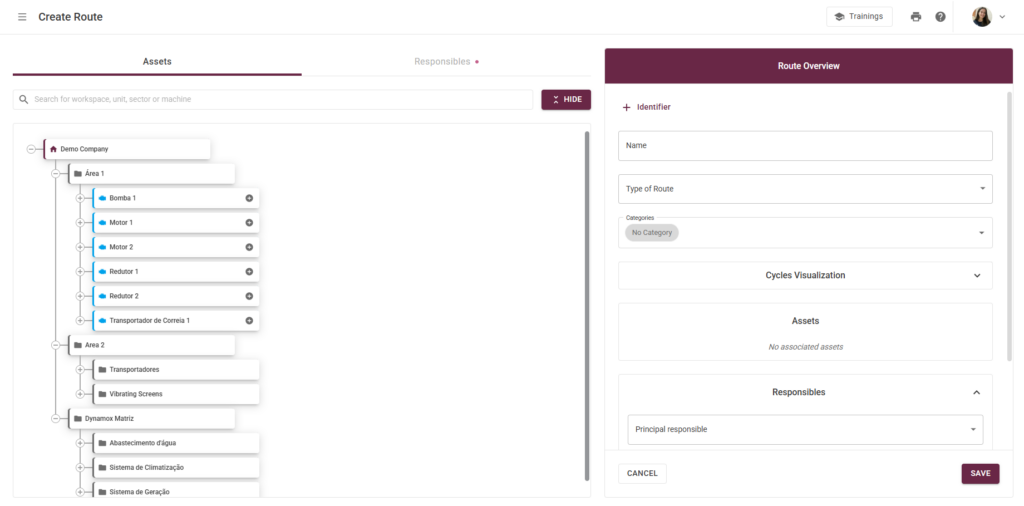
The user must open the Web Platform, log in, and access the Create Route page. When configuring a route that contains spots, the user will have the option to set the spectral collection requirement. 

Start using the new updates now – already available on the Web Platform! 🚀

iOS – version 4.0

The new iOS update is now available! ✨ 

Check out the new features and tools, designed especially for you: 

🆕New Criticality Types 

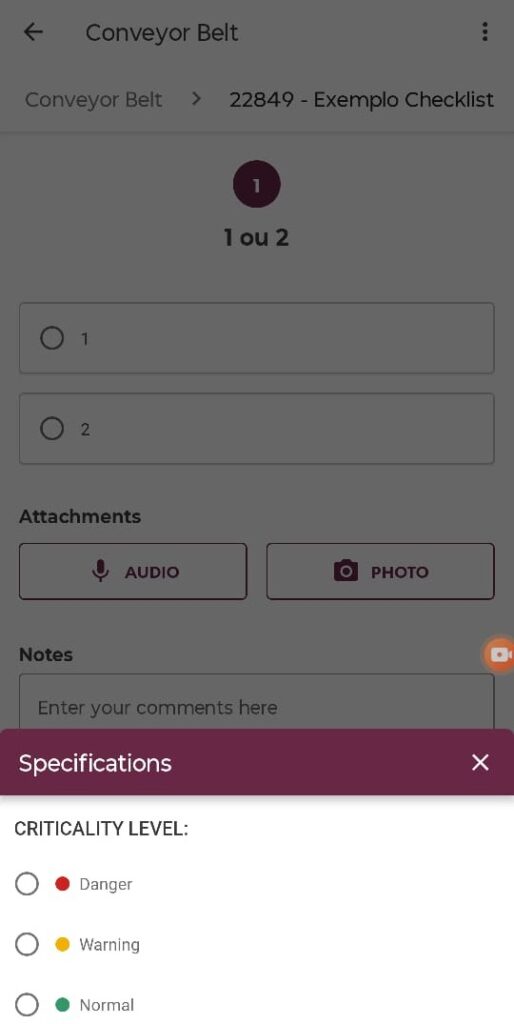
The list of criticality levels, an essential item for filling out checklists, now includes new types, making the tool even more useful for various applications. 

🔍 Where can I find this new feature? 

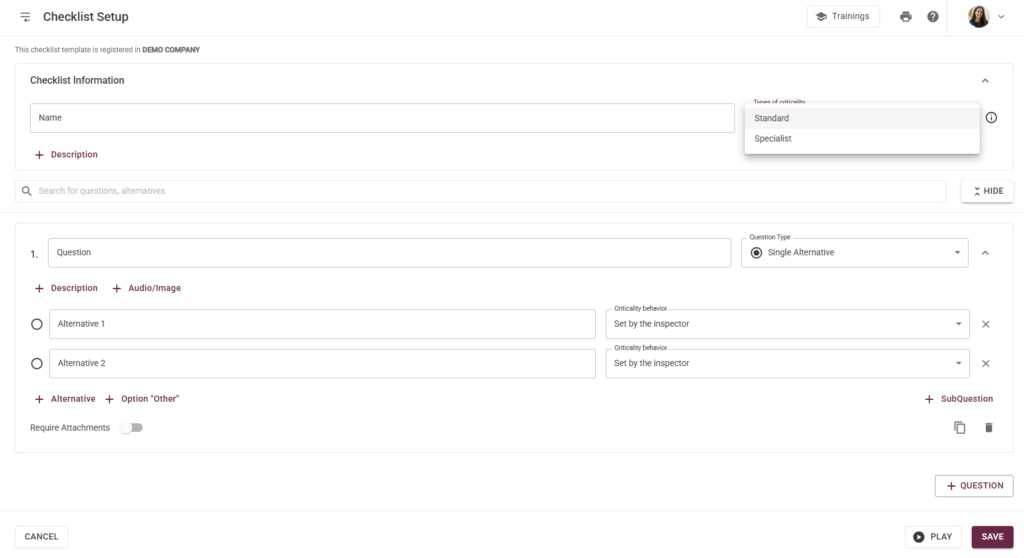
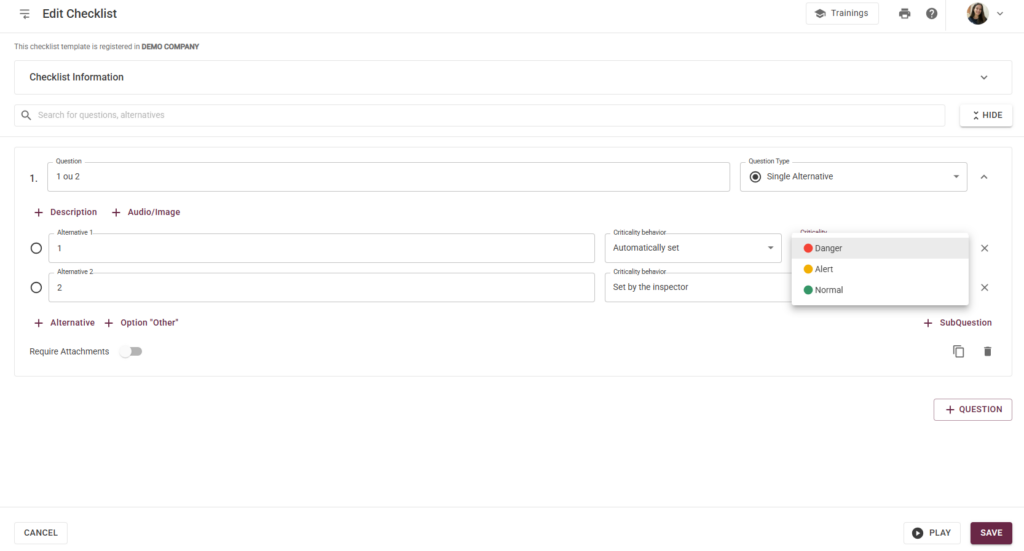
After logging into the Web Platform, the user must go to the “Create Checklist” page and select the desired checklist type. ✅ 

Within the tool, there is now a new “Criticality Type” field, available along with other checklist information. Clicking on this field opens a dropdown list with the options Standard or Specialist. Selecting a type is required to complete the checklist setup. 

The Criticality Behavior options for the alternatives remain the same: 

  • Automatically defined; 
  • As a suggestion; 
  • Defined only by the inspector; 
  • Alternative without criticality. 

However, these options will adjust according to the selected Criticality Type. 

Each Criticality Type corresponds to a different set of criticality levels that will appear during execution in the DynaPredict App: 

🆕 Short Cycle Configuration 

To provide more flexibility in route configuration, the new DynaPredict App update introduces cycle settings with durations in hours and minutes! 

💡 How to use this new tool? 

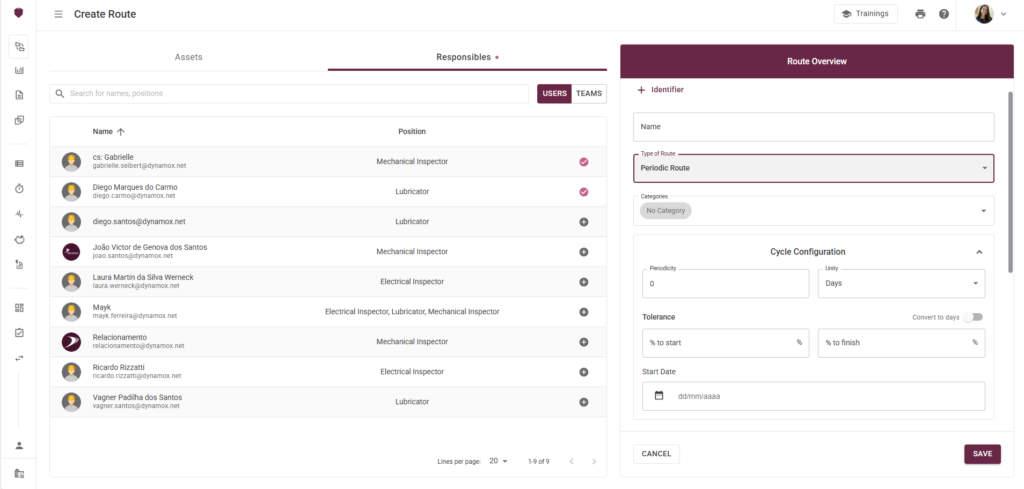
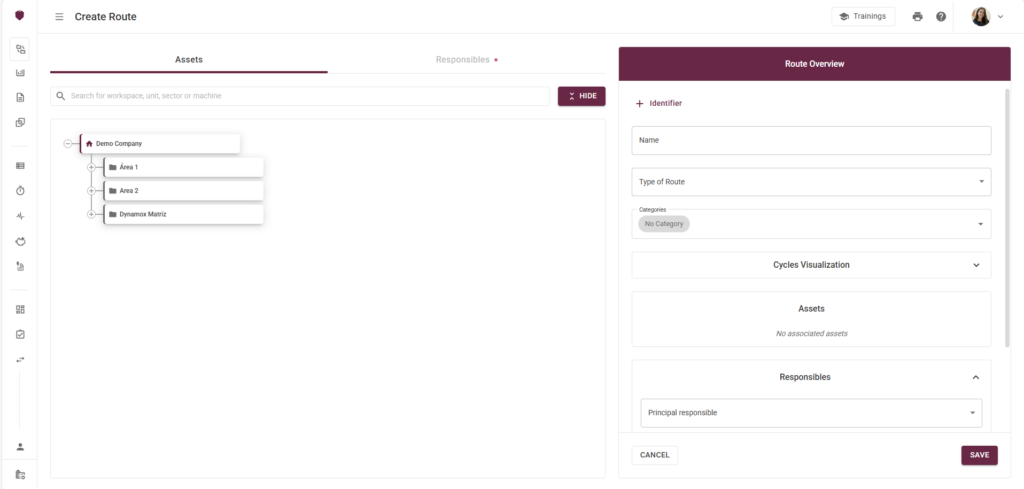
The user must open the Web Platform and access the “Create Route” page. When setting up the desired route, it is necessary to define a “Name” and then select the “Route Type.” 

Since cycle configuration varies depending on the route type, check out the details for each one: 

  1. Periodic Route 

When selecting the “Periodic Route” type, the Cycle Configuration step now allows a new unit for periodicity: HOURS. 🕒 

By choosing this option, the tolerance fields adjust to a time format, and the start time is defined using a date and time combination. Additionally, the minimum cycle duration is 15 minutes. 

Once the cycle configuration is complete, the user can check the dates and times of the next four cycles in the “Cycle Overview” table, as shown in the example below: 

  1. Route by Trigger 

When selecting the “Route by Trigger” type, the Cycle Configuration step allows the Start and Completion of the cycle to be defined by a date and time combination. 🕒📆 

This enables users to configure both sub-day cycles and multi-day cycles. 

The minimum cycle duration is 15 minutes. 

🔍Executing Routes in the App 

The user must open the DynaPredict App, log in, and go to the Sensitiva section. There, they will see all routes they are responsible for, as configured in the Platform. ⚙️ 

For each route, the app will display the following information: 

  • Available from: The date and time when the route cycle became available. 
  • Complete by: The date and time when the route cycle will close in the app. 

🆕 App Redesign 

To improve clarity and navigation, the new version of the DynaPredict App introduces updates to its layout and colors! 🎨📱 

While maintaining all functionalities and tools, here are the key visual changes: 

Mantendo sua funcionalidade e ferramentas, confira abaixo as principais alterações visuais do aplicativo: 

  • New color palette: The app now follows Dyna’s theme color!  
  • Increased font sizes for better readability. 
  • New icons added for menu tools. 

The new design is now available! Upon opening the app, users will be notified about the new color update. 

This notification will appear on the Dashboard screen after login!

Update now: available on iOS! 🚀

Android – version 5.0

New Android App udpdate is available now! 

Check out what’s new in this version, designed especially for you: 

🆕 Short Cycle Configuration 

To provide more possibilities for route configuration, the new DynaPredict app update introduces cycle settings with durations in hours and minutes!   

💡 How to Use the New Tool? 

The user must open the Web Platform and access the “Create Route” page. When configuring the desired route, it is necessary to define a “Name” and then select the “Route Type.” 

Since cycle settings vary depending on the route type, check out each one in detail: 

  1. Periodic Route 

When selecting the “Periodic Route” type, the Cycle Configuration step now allows a new unit for periodicity: HOURS. 🕒

By selecting this option, the tolerance fields are adjusted to a time format, and the start time is defined by a combination of date and time. Additionally, the minimum cycle duration is 15 minutes. 

Once the cycle configuration is completed, the user can check the dates and times of the next four cycles in the “Cycle Overview” table, as shown in the example below: 

  1. Route by Trigger 

When selecting the “Route by Trigger” type, the Cycle Configuration step allows the Start and Completion of the Cycle to be defined by a combination of date and time. 🕒📆

This enables the user to configure both sub-day cycles and multi-day cycles. 

The minimum cycle duration is 15 minutes. 

🔍Executing Routes in the App 

The user must open the DynaPredict App, log in, and access the Sensitiva section. The user will be able to view all the routes they are responsible for, as configured in the Platform. 

For each route, the app will display the following information: 

  • Available from: The date and time when the route cycle became available. 
  • Complete by: The date and time when the route cycle will close in the app. 

🆕App Redesign 

To enhance clarity in navigation, the new version of the DynaPredict App introduces changes to its layout and colors! 🎨📱

Maintaining all functionalities and tools, here are the key visual updates in the app: 

  • New color palette: The app now matches Dyna’s theme color! 
  • Increased font sizes for better readabillity; 
  • New icons added for menu tools; 

The new design is now available! Upon opening the app, users will be notified about the new color update!

The notification will appear on the Dashboard screen after login. 

Use the update now: already available in the Android App! 🚀

WEB: March/2025

The new update of the DynaPredict Web Platform is now available! 🌐

The platform brings updates related to Smart Spot Configuration, Associated Spot Status, and Alert Omission in Metric Graphs:

🆕 Smart Spot Configuration

Aiming for even more practical solutions in platform usability, the new update brings improvements to the Standard Spectral configuration of DynaLoggers, enhancing the parameterization of Spots. 🚀

Now, Spot configuration will be carried out based on artificial intelligence analysis! ✨

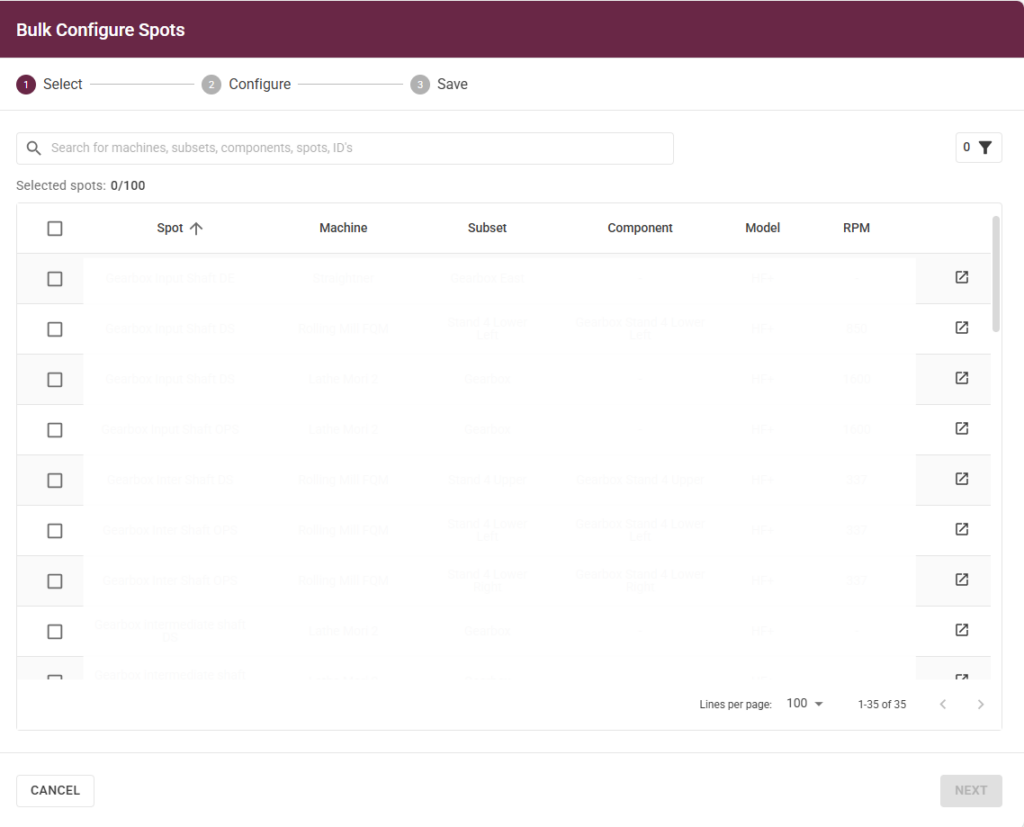
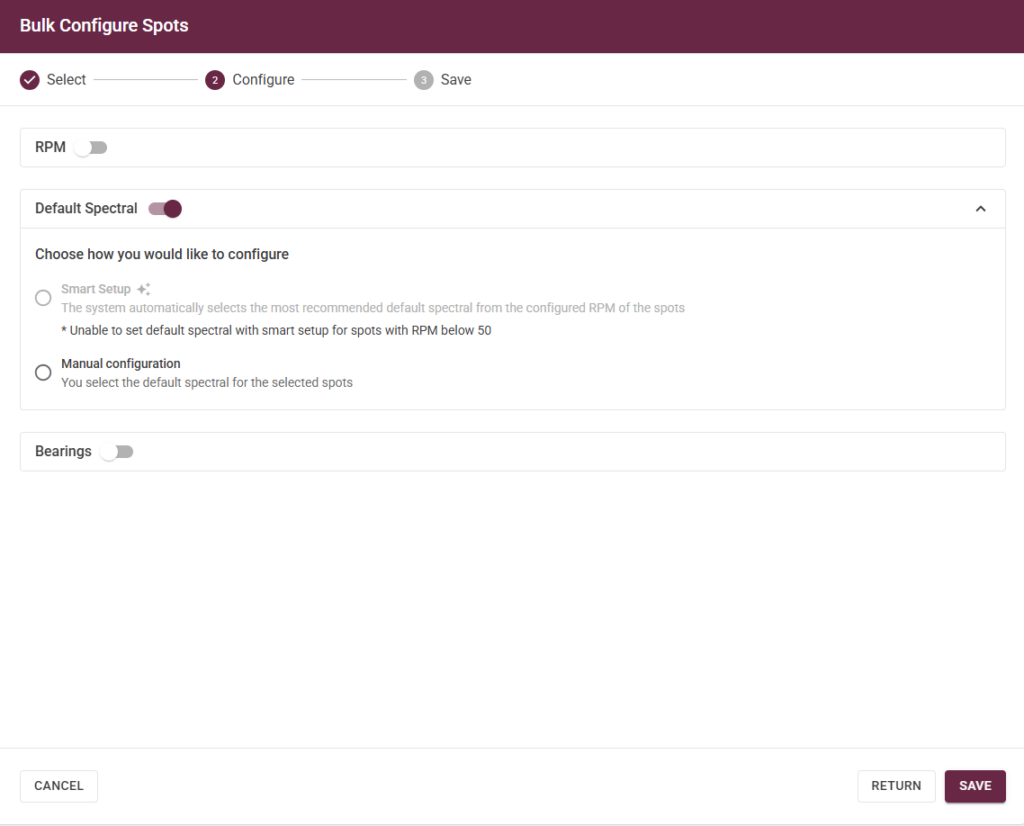
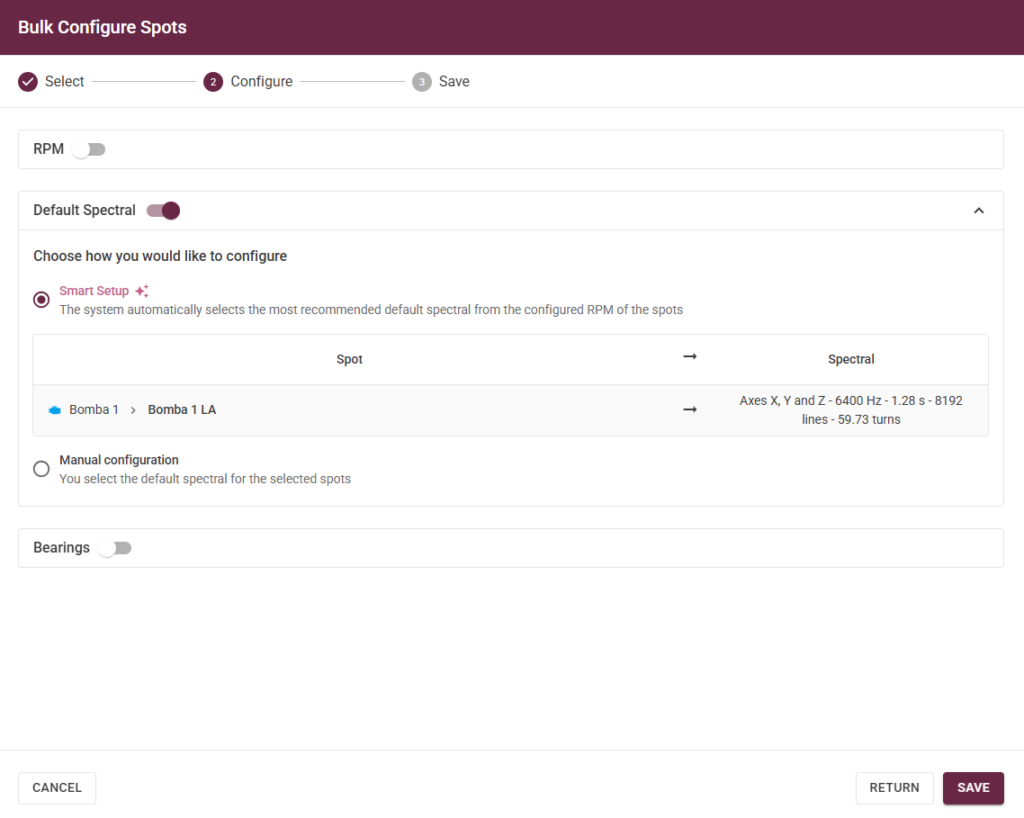
This new feature will be integrated into Bulk Spot Configuration, allowing for the quick application of settings to a large number of DynaLoggers. 🎯

📌 To use this tool, go to “Bulk Spot Configuration” available on the Spots and Monitoring Management screens. There, select the Spots whose DynaLoggers you want to configure and click “Next.”

In the next step, enable the Standard Spectral configuration and select the Smart Configuration option.

A preview of the selected configurations for each Spot is displayed, including the maximum frequency, collection duration, resolution in number of lines, and the number of measured rotations, calculated based on the RPM provided in the Spot and the collection duration.

Finally, just click Save!

💡 Additionally, here are some important details about this new update:

The Standard Spectral Configuration is determined based on three key factors:

✅ Spot RPM
✅ DynaLogger Model

It is still possible to manually select the Standard Spectral Configuration, but only for DynaLoggers of the same model.

🆕 Status of Associated Spots

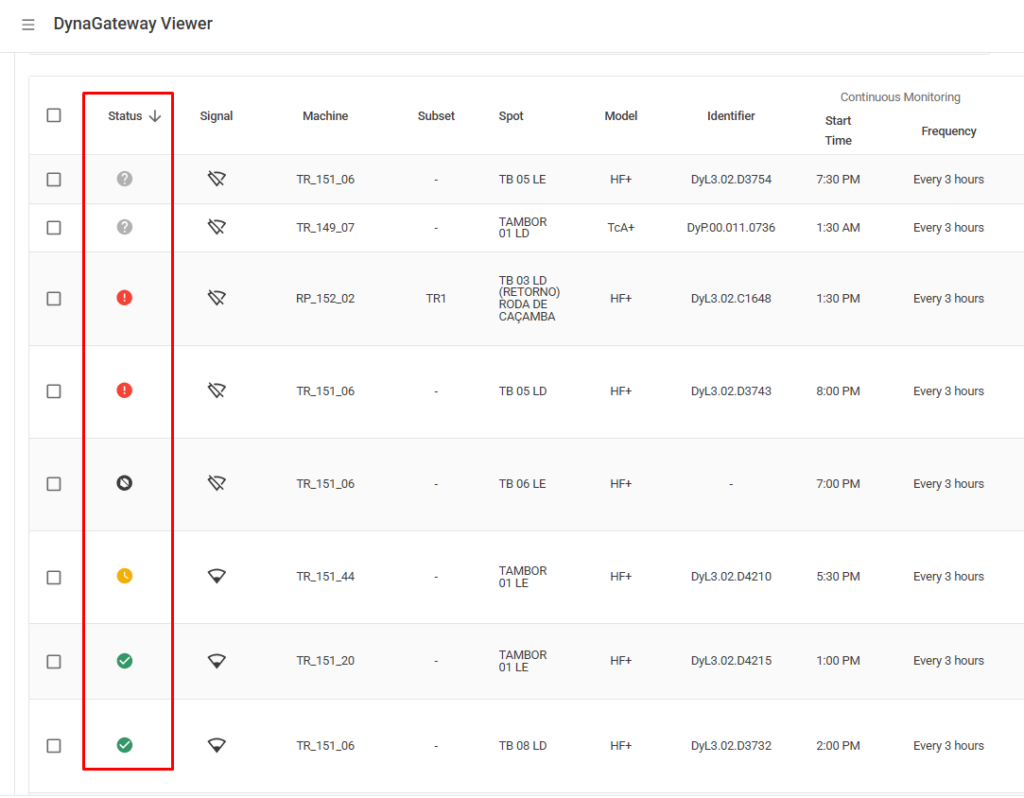
This update also brings improvements to the Status of Associated Spots on the DynaGateway Viewer screen. Now, you can check the status of each Spot in greater detail, with expanded status options, allowing for five (5) possible modes:

🟩Successfully Collected (Green): The DynaGateway successfully collected sensor telemetry at the defined frequency.

🟨Collection Delay (Yellow): The DynaGateway failed to collect telemetry successfully, and at least one telemetry collection is delayed. 

🟥Connection Issue (Red): The DynaGateway failed to collect telemetry, and more than three telemetry periods were missed by the sensor.

⬛Not Sensorized (Black): There is no sensor associated with the Spot.

⚪Unknown Status (Gray): There is no information about the sensor because it has not been collected by the associated DynaGateway.  

🆕Omission of Alerts in Metric Charts

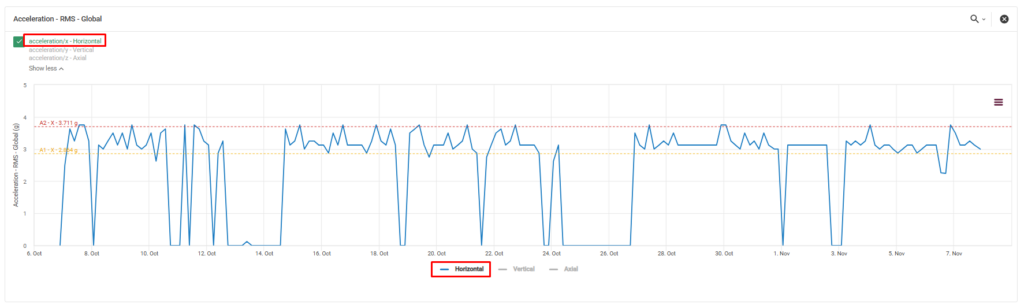
More platform updates! To enhance usability, a new option is now available, allowing you to view configured alerts directly in the charts.

This new feature enables you to select a single alert per axis, providing a clearer visualization of uniaxial alerts in the charts. The option can be found just below the metric name.

📌 How to use it?
Simply select the alert for the desired axis (e.g., X-Axis – Horizontal) and then enable the display of only that axis below the chart.

Enjoy the new update, now available on the Web Platform! 🚀

iOS – Version 3.23

The new iOS App update is available!

Check out the new features and tools designed especially for you:

🆕 Mass Spot Association

To optimize the process of associating and configuring spots, the new DynaPredict app tool allows users to perform a bulk association of a set of sensors to spots.

🔍 Where can I find this new feature?

In this new flow, when accessing a machine’s page, a new icon (indicated in the image below) will appear, allowing access to the new functionality:

This icon will be available at the machine, subset, and component levels. If there are no registered spots in the asset, the icon will be hidden, meaning the feature will be unavailable.

🔧 How to use the new tool?

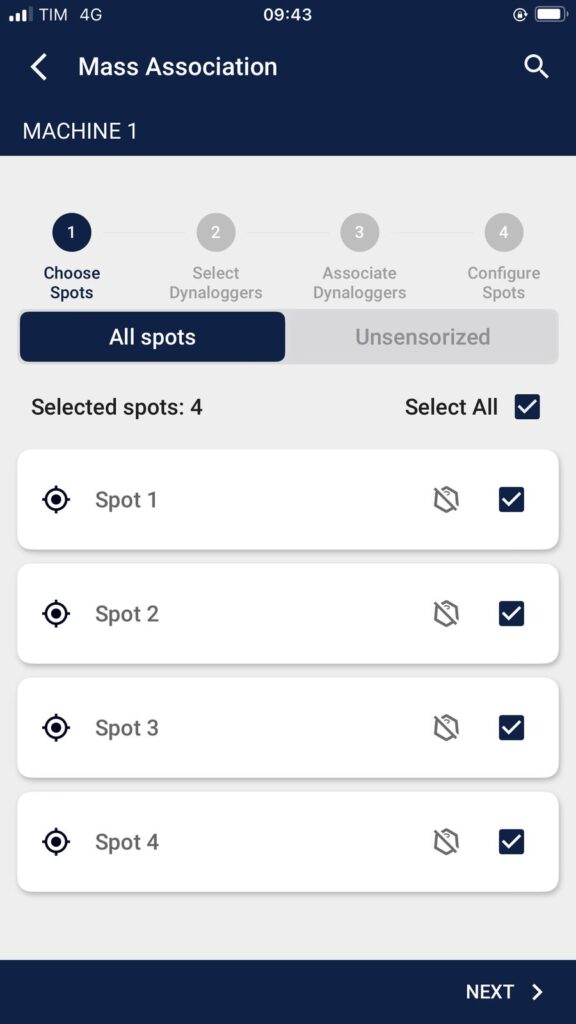
1️⃣ Choose Spots
The app will display all Spots within the asset at the level where the feature was accessed.
There is no limit to the number of spots that can be selected.

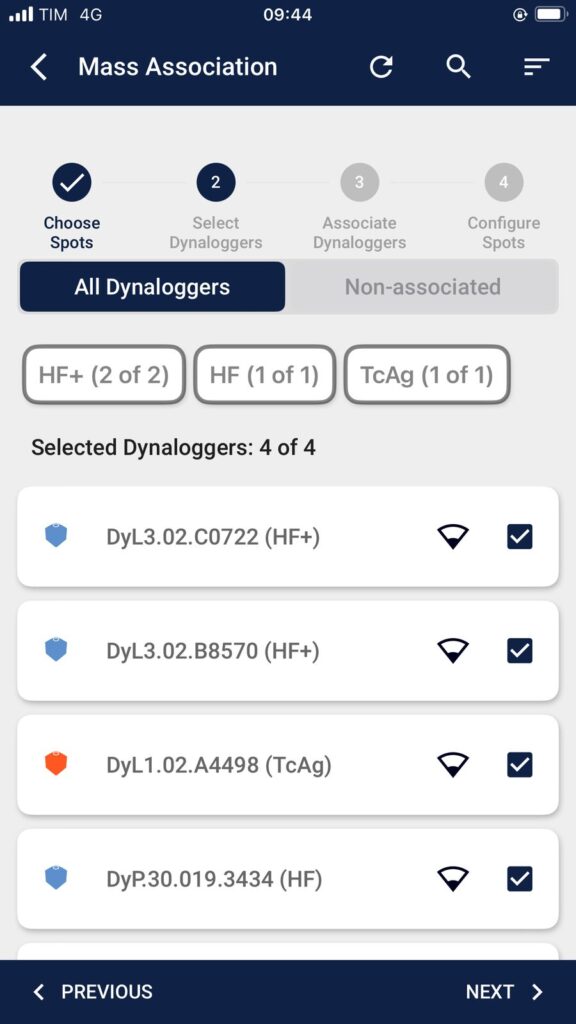
2️⃣ Select DynaLoggers
After choosing the desired spots, the user must select which sensors to use. To proceed, the number of selected sensors must match the number of selected spots.

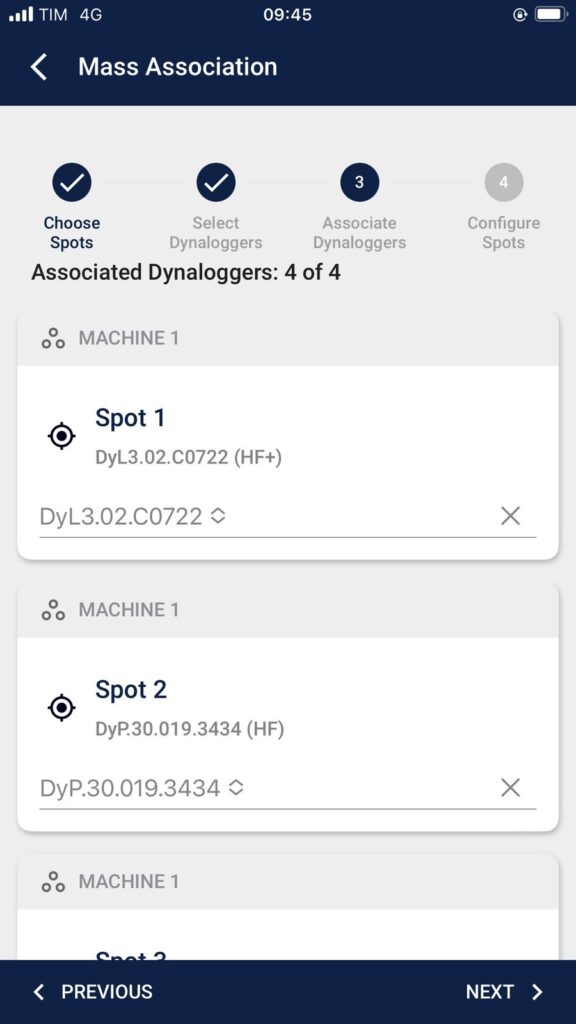
3️⃣ Assign DynaLoggers to Spots
Next, the user will pair each DynaLogger with a corresponding Spot. As the user selects from the available DynaLoggers, the remaining options will narrow. The list of available DynaLoggers is filtered based on the Spot model.

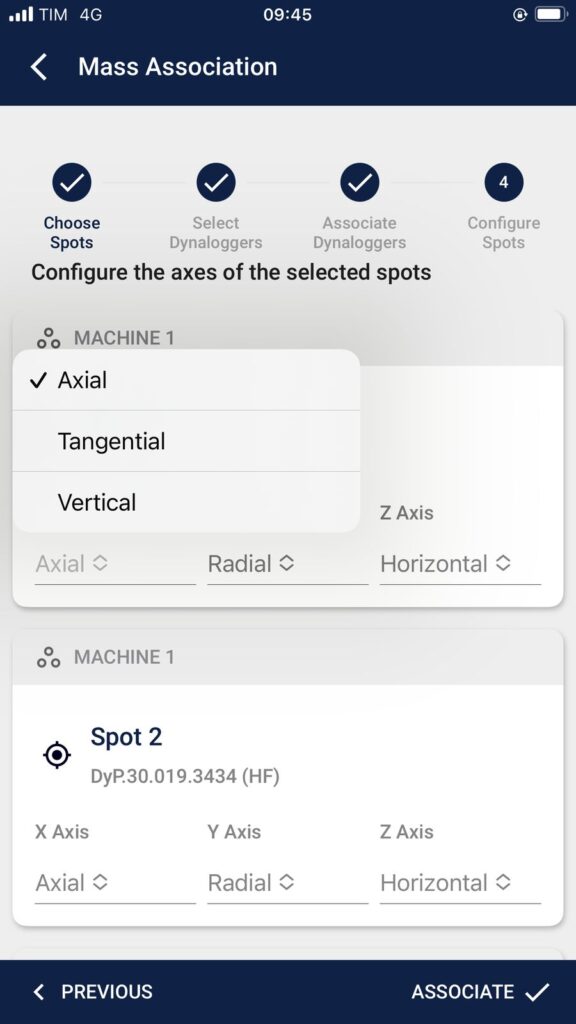
4️⃣ Configure Spots
At this stage, the user can modify the axis configurations of the selected Spots, though this step is optional.

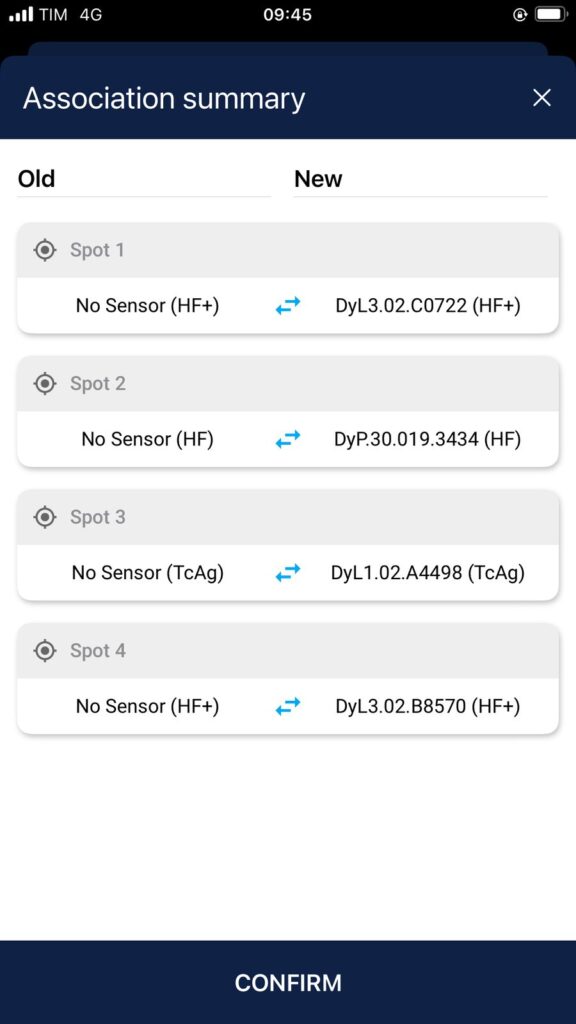
5️⃣ Summary and Connection
Finally, a summary page will display the performed actions. It will show the Spot’s status before and after the association, highlighting any changes in DynaLogger assignments and axis settings. After confirming the associations, the app will connect to the sensors to finalize the process.

🆕 Telemetry Deactivation

More updates! The new version now allows users to disable vibration telemetry metric measurements for Dyna Portable users who do not wish to see these metrics.

⚙️ Spot Configuration

In the Spot configuration pages on both the App and Web Platform, users can choose to perform RMS-based spectral data collection instead of telemetry. To do this, they must disable the measurement of Telemetry speed and acceleration metrics.

🔍 Spot Data Collection

When connecting to a spot where speed and acceleration telemetry metrics have been disabled, the snapshot page will only display the temperature telemetry value.

If a standard spectral analysis is requested for that spot, the user can expand the spectrum and waveform graphs to view the global metrics of the monitored axes.

Update now – available on iOS!